
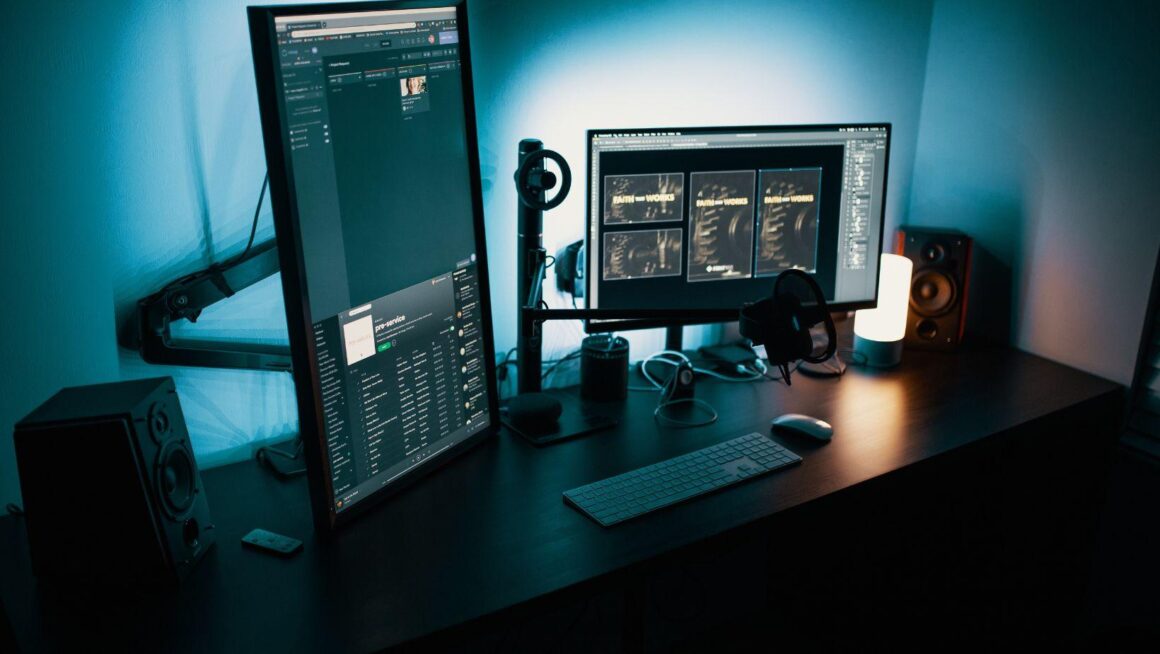
My raid frames used to live crammed into the bottom corner of a single 27-inch panel, squeezed between a Discord overlay and a Spotify window I kept forgetting to minimize. It worked. Barely. Then I added a second monitor to the desk, and the whole workflow stopped feeling like triage.
A second screen is not a luxury item anymore. It’s closer to a basic utility for anyone who streams, raids, or just keeps more than three things open at once. The RGB strip under your desk looks great in photos, but it’s the panel count that actually changes how you play.
This isn’t a shopping list of monitors. It’s the build logic: how to mount it, how to wire it so your cable management doesn’t become a second job, and what you actually gain once it’s running.
The Case for Going Dual-Screen in the First Place
Here’s the thing nobody tells you before you buy a second monitor: the frame rate hit is basically zero if you’re not gaming across both screens. A second 1080p panel driven by integrated graphics or a spare HDMI port costs you almost nothing in performance. What it costs you is desk space and, if you’re careless, a mess of cables behind the tower.
Most players run their second screen for one of three things. Discord and voice chat overlays during raids. A stream dashboard if they’re on Twitch or Kick. Or just general browser real estate, because tabbing in and out of a fullscreen game is slower and glitchier than glancing two feet to the left.
The third use case is the one that actually gets tested the hardest, because browser tabs multiply fast. And once people start parking tabs on that second screen, the question shifts from “can I fit this” to “what’s actually worth having open.”
For a growing number of PC gamers, one of those tabs is a casino account running in the background between raid pulls or queue times. It’s not a huge leap. If you’re already running Discord, a Twitch chat, and three browser tabs on that spare monitor, a slots session is just one more window competing for the same real estate. Before committing a chunk of that screen to it though, it’s worth reading something like the slots.lv review first, since loading time, payout speed and how a welcome bonus actually plays out matter a lot more once real money and real desk space are involved.
That’s genuinely the only casino mention in this build guide, and intentionally so. The rest of this is about wiring, mounting, and keeping your setup from turning into a cable graveyard.
Mounting: Where the Second Screen Actually Goes
A lot of dual-monitor setups fail at the mounting stage, not the GPU stage. People buy a second panel, prop it on a stack of textbooks next to the main screen, and wonder why their neck hurts after two hours.
The fix is almost always a VESA arm. Most 24 to 27 inch monitors support the 100x100mm VESA pattern out of the box, and a dual-arm clamp mount runs anywhere from $40 to $120 depending on how much adjustability you want. Get one with gas-spring tension if your panel is heavier than 5kg, because the cheap friction-hinge arms sag within a month.
Angle matters more than most people think. Your primary monitor should sit dead center at eye level. The second one gets angled 15 to 25 degrees toward you, not flat beside the first. Flat side-by-side setups force a full head turn every time you glance over, and that adds up over a six-hour session.
Cable Management: The Part Everyone Skips
Nobody wants to talk about cable management because it’s boring. It’s also the single biggest difference between a setup that looks like a server room and one that looks intentional.
Three cables per monitor, minimum. Power, video (DisplayPort or HDMI), and USB if it’s got built-in speakers or a hub. Double that for two monitors and you’ve got six cables fighting for the same six inches behind your desk.
Velcro ties beat zip ties every time, because you’ll be moving things around more than you expect. Corsair’s recent approach to the dual-screen clutter problem leans into exactly this pain point, routing power and data through a single spine rather than a tangle of separate runs. You don’t need their specific hardware to copy the idea. A cable tray clipped under the desk and a single velcro spine running from the PSU to both monitors will do 90% of the same job for under $15.
Route your RGB headers last. They’re the thinnest cables and the easiest to snag, so they should sit on top of the bundle, not buried under HDMI cords that’ll crush the connector over time.
GPU and Port Considerations Before You Buy
Not every graphics card drives two monitors equally well. Older integrated graphics on a budget build can usually push a second 1080p panel at 60Hz without issue, but if you’re trying to run a 144Hz primary alongside a second 144Hz screen, check your GPU’s actual output count before buying anything.
Most modern cards (RTX 40-series and up, and the equivalent AMD RX 7000-series cards) ship with at least one DisplayPort and one HDMI 2.1 port, which covers a basic two-monitor setup without needing a dock. If your card only has a single DisplayPort and a VGA, you’re looking at either an adapter or a different plan entirely.
One thing worth flagging from actual bench time. Multitasking across two demanding windows, like a live stream encode plus a graphically heavy game, pulls real VRAM. If you’re running 8GB of VRAM or less, don’t expect to game at max settings while also running OBS and a browser full of tabs on the second screen. Drop a setting tier or upgrade the card. There isn’t a clean workaround.
What This Actually Changes Day to Day
The honest answer is that a second monitor doesn’t make you a better player. It makes the boring parts of PC gaming less annoying. Checking a build guide without alt-tabbing. Watching a Discord call without a floating overlay blocking your minimap. Running a Twitch chat window without it stealing a third of your main screen’s real estate.
Research into multitasking cognition has shown for years that switching rapidly between tasks on a single display actually costs more mental overhead than running them in parallel on separate screens. That’s the core argument for the whole setup. It’s not about doing more things. It’s about not constantly re-finding where you were.
The RGB lighting is still worth doing, by the way. A desk that looks good is a desk you want to sit at for six hours during a long raid night. But the second panel is the part that actually earns its keep.
Setting a Budget Before You Shop
Plan for $150 to $300 if you’re buying a basic 1080p 75Hz panel plus a mounting arm. Push toward $400 to $600 if you want matching refresh rates across both screens, which matters more than people assume once you’re gaming on one and streaming from the other.
Current monitor buying guides tend to bucket panels by primary use case: productivity, gaming, or color-accurate work. For a second screen dedicated to overlays and browser tabs, you don’t need the color accuracy tier. Save that budget for the arm and the cable management instead. A cheap panel on a solid mount beats an expensive panel propped on a box.
Common Questions About Dual-Monitor Builds
Does adding a second monitor hurt my gaming frame rate? Barely, if at all. The GPU only renders what’s displayed on each screen independently. Running a browser or Discord on the second monitor costs a small amount of VRAM and CPU overhead, not frame rate on your primary game. The bigger risk is running something graphically demanding on both screens simultaneously.
What size second monitor should I get? Match or go slightly smaller than your primary. A 24 to 27 inch second screen at the same height keeps the setup visually balanced and avoids awkward neck angles. Going bigger than your main monitor usually means it dominates your peripheral vision for no real benefit.
Do I need a matching refresh rate on both screens? Only if you plan to game across both. For overlays, chat, and browser tabs, a 60Hz second monitor is completely fine next to a 144Hz primary. Save the higher refresh rate budget for whichever screen actually runs the game.
Is a monitor arm worth it over a stand? Yes, almost always. Stands eat desk depth and limit your angle adjustment. A clamp-mounted VESA arm frees up space underneath for cable routing and lets you angle the second screen toward your eyeline, which matters more over long sessions than people expect going in.
Can I run a second monitor off a laptop instead of a desktop? Most modern laptops support at least one external display through HDMI or USB-C with DisplayPort alt mode. Check your specific model’s port spec first. Some budget laptops cap out at a single external 60Hz display, which limits what you can realistically run alongside it.
A second monitor won’t fix a bad build. But bolted onto a desk that already has decent airflow and a GPU that can handle the extra output, it’s one of the cheapest upgrades left on the table. Wire it properly, mount it at the right angle, and the rest of the setup finally starts pulling its weight.