
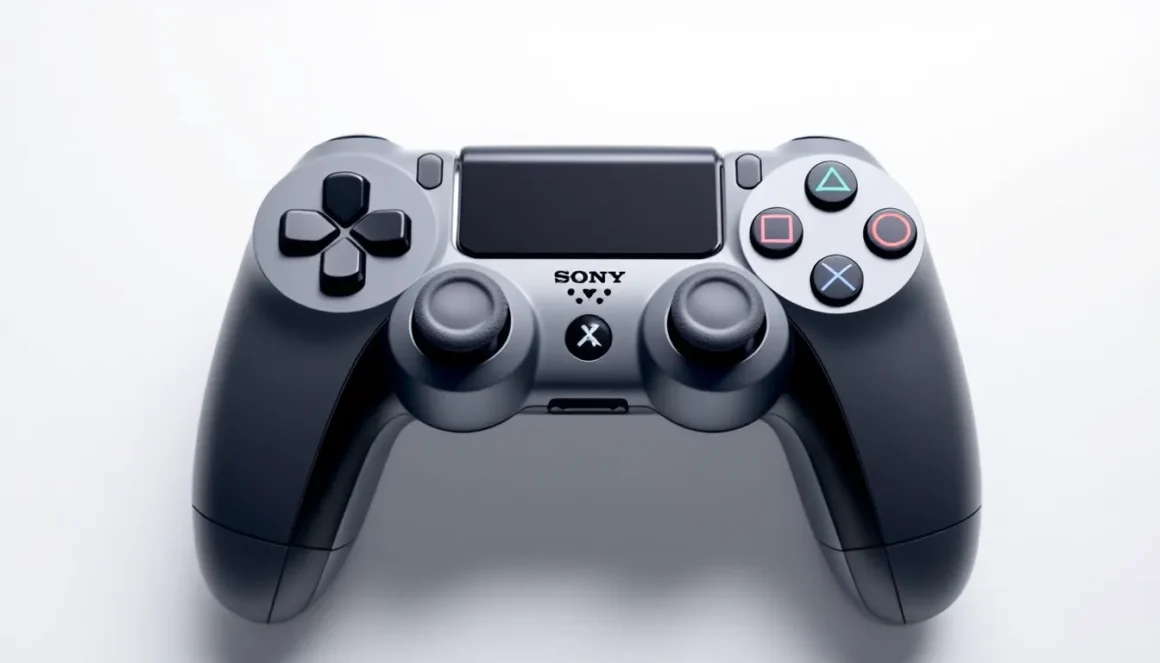
Sony’s PlayStation Access Controller represents a watershed moment for accessible gaming. Since its launch, it’s opened doors for players with limited mobility, dexterity challenges, or other physical needs, proving that accessibility and high-performance gaming aren’t mutually exclusive. Whether you’re managing a chronic condition, recovering from an injury, or simply seeking an alternative control method, this specialized controller delivers genuine functionality without compromise. This guide breaks down everything you need to know: setup, customization, compatibility, and real-world impact. If you’ve been sitting on the sidelines, wondering whether the Access Controller is right for you, it’s time to find out.
Key Takeaways
- The PlayStation Access Controller delivers customizable, modular button layouts and adjustable trigger sensitivity that adapt to players with limited mobility, dexterity challenges, or accessibility needs.
- Comprehensive remapping, macro programming, and one-handed play support make the Access Controller unique in enabling competitive and casual gaming for disabled players across PS5 and PS4 platforms.
- Game-specific profiles, haptic feedback tuning, and a community-driven ecosystem of shared customization setups ensure the PlayStation Access Controller evolves to meet diverse player requirements.
- At a $20 premium over standard DualSense controllers, the Access Controller’s modular design, per-button haptic control, and external button pack compatibility justify the investment for players with genuine accessibility needs.
- Real-world impact stories demonstrate that the PlayStation Access Controller removes barriers preventing disabled gamers from participating in gaming culture, enabling players previously excluded to experience games from Elden Ring to FIFA competitively.
What Is the PlayStation Access Controller?
The PlayStation Access Controller is Sony’s purpose-built input device designed specifically for players with disabilities or accessibility needs. Unlike standard controllers, it prioritizes customization, ergonomics, and flexibility from the ground up. Rather than squeezing accessible features into a conventional design, Sony engineered this from scratch around accessibility principles.
Released to complement the PS5 ecosystem, the controller works with both PS5 and PS4, giving millions of players across Sony’s current and previous generation consoles the tools they need. It’s not a gimmick or a side project, it’s a legitimate control solution that competitive and casual players alike depend on daily.
The controller’s philosophy is simple: no two bodies are the same, so no single controller layout should dictate your experience. That’s why almost every aspect is customizable. Button placement, trigger sensitivity, haptic response, deadzone tuning, all of it can be adjusted. Some players use it with one hand. Others use two but need wider button spacing. Some require reduced grip pressure. The Access Controller adapts to you, not the other way around.
Key Features and Specifications
Customizable Button Layouts
The Access Controller ships with a set of mechanical button modules that snap into place on the face of the controller. You’re not locked into a fixed button arrangement. Instead, you can remove, replace, or reposition buttons based on your needs.
The controller comes with multiple button sizes, large, standard, and smaller options, plus additional specialty buttons for specific functions. If you need buttons spread further apart for easier access, you configure that. If you want to cluster certain controls together, you can. This modularity is the heart of what makes the Access Controller different from anything else on the market.
You can also assign multiple button functions to a single physical button through remapping, and create macros that execute complex command sequences with a single press.
Adaptive Triggers and Haptic Feedback
The Access Controller features adaptive triggers and haptic feedback inherited from Sony’s DualSense technology. These aren’t just novelty features: they’re crucial for immersion and gameplay clarity.
Adaptive triggers simulate resistance, think of drawing a bowstring or squeezing a trigger in a shooter. For players with reduced grip strength or tremors, the resistance can be tuned down. For players who benefit from haptic feedback cues but struggle with audio, the haptic system provides in-game feedback you can feel instead of hearing.
Haptic feedback also alerts you to in-game events: weapon recoil, impact collisions, texture changes underfoot. You can adjust the intensity across the entire controller or tune it per-button, giving you granular control over sensory input.
Accessibility-First Design
The controller’s overall design prioritizes comfort for extended sessions. The handle and grip are optimized for reduced hand fatigue. Button-press resistance is adjustable across the board, no more wrestling with stiff triggers or unresponsive buttons.
The device also supports external button packs that can be mounted to the controller via the hub connector, allowing you to add additional controls without cluttering the main layout. This is invaluable for complex games that demand multiple simultaneous inputs.
Connection stability is built in. The controller maintains a reliable 2.4 GHz wireless connection with minimal latency, critical for competitive play where milliseconds matter. Battery life runs approximately 8-10 hours per charge, depending on usage patterns.
Hardware Setup and Compatibility
PlayStation 5 and PS4 Compatibility
The PlayStation Access Controller is fully compatible with both PS5 and PS4 consoles. Support extends across all major PS5 game releases and nearly the entire PS4 catalog, though a small number of legacy PS4 titles may have limited compatibility depending on their control input handling.
For PS5 gameplay, you’re getting the full feature set: adaptive triggers, haptic feedback, and DualSense-specific haptics within games that support them. On PS4, you retain customization, button remapping, and core functionality, though some DualSense-exclusive features won’t activate since the PS4 hardware doesn’t support them.
Sony continues to expand game compatibility through firmware updates. When a new PS5 exclusive launches, Sony’s development team works to ensure the Access Controller integrates cleanly, though developers eventually carry out the feature integration.
Wireless and USB Connection Options
The controller supports two connection methods: 2.4 GHz wireless via the included USB dongle, or USB-C wired connection. Most players prefer wireless for the freedom of movement, and the latency is imperceptible, well within the acceptable range for even competitive shooters and fighting games.
Wired connection is useful if you’re troubleshooting connection issues or need guaranteed power delivery during long sessions without recharging. Simply plug in the USB-C cable, and the controller draws power while data streams to your console.
The wireless dongle is compact and can remain plugged into the PS5’s rear USB port semi-permanently. Pairing is straightforward, covered in the next section.
Getting Started: Initial Configuration and Pairing
Step-by-Step Pairing Process
Getting the Access Controller talking to your console is a five-minute job:
- Power on your PS5 or PS4. The console needs to be on before pairing.
- Connect the wireless USB dongle to an available USB port (rear ports are cleaner, but front works too).
- Turn on the Access Controller using the power button on the underside.
- Press the pairing button (located near the power button) until the LED indicator pulses.
- Navigate to Settings > Devices > Controllers on your console and select “Pair Controller.”
The controller should appear in the pairing list within 10 seconds. Select it, confirm, and you’re done. The LED will stop pulsing and glow steady once paired.
If you’re using USB-C wired connection instead, simply plug the cable into the controller and the USB port on your console. No pairing required, the console recognizes it immediately.
Customizing Your First Profile
Once paired, head to Settings > Controllers > Access Controller to access the customization menu. Here’s what you’ll find:
- Button Assignment: Select which button does what. Reassign buttons to match your preferred layout.
- Trigger Sensitivity: Dial in how responsive triggers feel.
- Haptic Intensity: Adjust vibration feedback across all buttons or per-button.
- Deadzone Settings: Fine-tune analog stick sensitivity to eliminate drift or unwanted inputs.
Create a profile for general use, then save separate profiles for specific games. Sony’s system lets you save multiple configurations, so you’re not constantly tweaking settings.
Start simple: map the buttons you use most frequently, test them in a menu, then jump into a game and refine from there. You’ll develop muscle memory faster if you stick with one layout for a few hours before changing it again.
Advanced Customization Options
Creating Game-Specific Profiles
Once you’re comfortable with basic customization, you can leverage game profiles to tailor your control scheme to specific titles. Different games demand different button layouts. A fighting game needs quick-access combo buttons. A first-person shooter prioritizes ADS and reload access. An RPG might benefit from easy access to the menu.
The Access Controller lets you create a profile tied directly to a specific game. When you launch that game, the console automatically loads the profile. No manual switching. This eliminates friction and keeps your flow uninterrupted.
To create a game profile:
- Open Settings > Controllers > Access Controller.
- Select “Create New Profile.”
- Assign the profile to a specific game title.
- Customize the layout specifically for that game.
- Save and test.
You can create as many profiles as you have games. PlayStation stores them locally on your console, so they’re always available even if you’re offline.
Sensitivity and Responsiveness Tuning
Analog stick sensitivity, trigger response, and button press resistance all live in the Sensitivity Menu. Here’s what matters:
Analog Stick Deadzone: Set this based on how much movement before the stick registers input. Larger deadzone = more movement required (better for tremors or unintentional inputs). Smaller deadzone = twitchier response (better for precision aiming).
Trigger Pressure Point: Controls how far you need to press a trigger before it activates. Lower pressure = easier access. Higher pressure = intentional presses only.
Button Press Sensitivity: Adjust how responsive buttons feel. Some players benefit from soft, easy presses. Others need harder resistance to avoid accidental activations.
Haptic Feedback Intensity: Controls vibration strength. Dial it down if haptics feel overwhelming, or crank it up if feedback feels too subtle.
These tunings are iterative. You’ll refine them over multiple play sessions as you understand how your body responds to different settings.
Button Remapping and Macro Functions
Button remapping is straightforward: select a physical button, assign it a function, save. You can map any button to any action the game supports.
Macro functions are more powerful. A macro is a sequence of button presses that executes with a single physical button press. For example, in a fighting game, you could map a single large button to execute a complex combo that normally requires six button presses in quick succession.
Macros are especially valuable for players with limited dexterity or coordination. Instead of struggling to time multiple precise inputs, you can pre-program the sequence and execute it reliably.
To create a macro:
- Navigate to Controller Settings > Advanced > Macro Programming.
- Select the button you want to program.
- Enter the button sequence you want to execute.
- Set timing delays between inputs if needed.
- Test and save.
Macros can be set with variable timing, fast execution for competitive games, slower execution for games where you need a deliberate pause between inputs.
Accessibility Features That Make a Difference
One-Handed Play Support
One-handed play isn’t a compromise, it’s a fully legitimate way to play with the Access Controller. Sony engineered this from day one.
The controller supports complete button mapping to a single hand. Thumb access to all four face buttons is possible through strategic placement. Triggers can be reassigned to buttons you can reliably hit. Analog sticks can be disabled if you don’t need them.
For games that don’t require simultaneous dual-input, one-handed play works flawlessly. Turn-based RPGs, menu-heavy adventures, and story games are natural fits. Even real-time action games become viable if you remap controls to minimize simultaneous button presses.
Many players use one-handed mode primarily but switch to two-handed configurations for competitive multiplayer where speed matters. The ability to flip between profiles in seconds makes this seamless.
Adjustable Button Size and Spacing
The mechanical button modules come in large, standard, and compact sizes. Button spacing is fully adjustable, you can spread buttons apart to prevent accidental activation, or cluster them for minimal hand movement.
Large buttons require less precision to activate and reduce finger fatigue during extended sessions. Standard buttons are the default compromise. Compact buttons are for players who need density over size, common in players with limited hand mobility who benefit from buttons being closer to their natural resting position.
You can mix button sizes on a single controller. Mount large buttons for primary actions (jump, attack, interact) and standard buttons for secondary controls (menu, options). This hybrid approach is genuinely useful once you’ve spent time optimizing your layout.
Reduced Grip Strength Requirements
Standard controller buttons require a certain amount of finger pressure to activate reliably. The Access Controller lets you eliminate that barrier.
Button actuation pressure can be lowered significantly, meaning buttons activate with a light touch instead of a firm press. This is invaluable for players with arthritis, muscle weakness, reduced dexterity from injury, or conditions like cerebral palsy that affect fine motor control.
Trigger pressure adjusts independently, so you can have easy-touch face buttons but slightly firmer triggers if that’s more ergonomic for your hands.
The controller also supports external button packs with even lighter actuation thresholds, mounted via the side connector. These are modular and swappable, giving you flexibility to experiment and find what works best.
Games That Work Best With the Access Controller
Action and Adventure Titles
Third-person action games like Astro’s Playroom, Spider-Man 2, and Bloodborne benefit massively from the Access Controller. These games demand precise analog stick control for aiming/targeting, button combos for combat, and quick menu access.
The Access Controller’s customization means players can:
- Map dodge to a single large button instead of requiring d-pad + button combo
- Lower trigger pressure for easier target lock
- Adjust analog deadzone to prevent unintended camera drift
- Create macros for complex combat sequences
Fortunately, Sony bundled Astro’s Playroom with PS5 as an ideal Access Controller showcase. The game’s tutorials specifically highlight accessibility features, and its generous button mapping options mean anyone can complete it comfortably.
RPGs and Story-Driven Games
Turn-based and story-heavy RPGs are exceptionally accessible with the Access Controller. Games like Final Fantasy VII Remake, Baldur’s Gate 3, and Persona 5 Royal don’t demand twitch reflexes. They demand thoughtful input and navigation.
One-handed play shines here. You can comfortably navigate menus, select attacks, and manage inventory with a single hand and custom button layout. Macro functions let you quickly apply status buffs or cast frequently-used spells with a single button press.
Accessibility options within the games themselves (difficulty adjustments, auto-combat features, text scaling) stack beautifully with the controller’s customization, removing barriers entirely.
Sports and Competitive Games
This is where you might think accessibility takes a backseat. It doesn’t. Sports titles like NBA 2K25 and FIFA 25 require fast inputs, but the Access Controller’s low-latency wireless connection and tunable sensitivity mean competitive play is viable.
Some competitive players use hybrid setups: Access Controller customization for accessibility, with the understanding that they’re accepting slightly higher input latency than players using standard controllers. Most online competitive games operate at 60Hz tick rates, meaning a few extra milliseconds aren’t game-breaking for non-esports play.
For disabled esports competitors specifically, the Access Controller opens avenues that weren’t realistic before. Players competing in disabled gaming leagues report successful use in fighting games, shooters, and MOBAs.
Troubleshooting Common Issues
Connection Problems and Reconnection Tips
Occasional wireless dropouts happen, especially if there’s interference in your setup (other wireless devices, cordless phones, microwaves). Here’s how to fix it:
Immediate steps:
- Move closer to your console to test if distance is the issue.
- Ensure the USB dongle isn’t obstructed or placed near other wireless devices.
- Check that your PS5/PS4 firmware is up to date.
Reconnection process:
- Hold the power button for 5 seconds to power off the controller completely.
- Wait 10 seconds.
- Press the power button again to turn it back on.
- The controller should reconnect automatically within 5 seconds.
If it doesn’t reconnect, re-pair the controller:
- Navigate to Settings > Devices > Controllers > Unpair Controller.
- Select the Access Controller and confirm.
- Power off the controller.
- Press the pairing button until the LED pulses.
- Go back to Settings > Controllers > Pair Controller.
If problems persist, try the USB connection to rule out wireless issues. If USB works fine, the dongle may need replacement (contact Sony Support).
Button Calibration Issues
Occasionally a button might register inputs without being pressed, or fail to register intentional presses. This usually indicates button drift or calibration drift.
Calibrate buttons:
- Go to Settings > Controllers > Access Controller > Calibration.
- Select the problematic button.
- Follow the on-screen instructions to recalibrate the button’s sensitivity.
- Press the button 10-20 times during calibration so the system learns your press pattern.
If a specific button continues malfunctioning after calibration, that button module may be faulty. Sony offers replacement button packs and individual buttons as warranty service.
Analog stick drift (unintended stick movement) is addressed similarly:
- Go to Calibration > Analog Sticks.
- Center the stick and hold it steady during calibration.
- Move through the full range of motion when prompted.
Analog drift is rare on the Access Controller but can happen after heavy use. Recalibration usually resolves it.
Firmware Updates and Maintenance
Sony periodically releases firmware updates that expand compatibility, add new games to the profile database, and fix bugs. Updates are automatic when your PS5/PS4 is connected to the internet and idle.
Manual firmware check:
- Go to Settings > System > System Software.
- Select “Update System Software.”
- Follow prompts to check for and install available updates.
There’s rarely a reason to delay updates, they’re designed to improve stability and add functionality. New game profiles are distributed via firmware updates, so staying current ensures new releases work out of the box.
Physical maintenance is minimal. Wipe the controller with a soft, slightly damp cloth if it gets dusty. Don’t submerge it. Avoid extreme temperatures (heat degrades the battery: cold degrades sensitivity). Store the controller in a cool, dry place when not in use.
Battery health degrades over time (typical lithium-ion behavior). After 2-3 years of heavy use, you might notice slightly shorter battery life. This is normal and not a defect, the battery can be replaced through Sony’s service centers.
Comparing the Access Controller to Standard Controllers
Price and Value Considerations
The Access Controller retails for $89.99 USD, compared to $69.99 for a standard DualSense. That’s a $20 premium that’s justified for players who genuinely need the customization and accessibility features.
If you’re a casual player without accessibility needs, the standard DualSense is the logical choice. Its haptic feedback and adaptive triggers are phenomenal, and you’re not paying for features you won’t use.
For players with disabilities, dexterity challenges, or specific accessibility needs, the $20 premium is an investment in genuine usability. Think of it as paying for customization that opens gaming to you when standard controllers don’t.
From a value perspective, you’re getting hardware that rivals the standard DualSense in terms of durability and performance, plus an entire ecosystem of customization that’s genuinely unique. That justifies the price differential.
Sony occasionally bundles the Access Controller with games or offers promotional pricing, so watch PlayStation Plus announcements and retail deals before pulling the trigger.
Customization Depth and Flexibility
Here’s the honest reality: the standard DualSense is an exceptional controller. Its haptic feedback and adaptive trigger implementation is industry-leading. But it’s designed for one audience, players with standard hand anatomy and mobility.
The Access Controller is designed for everyone else. That means customization that goes beyond novelty:
Standard DualSense:
- Fixed button layout
- Button remapping via software (limited)
- Haptic feedback (can’t be disabled per-button)
- Single grip size
Access Controller:
- Modular buttons (size, spacing, actuation pressure)
- Comprehensive remapping and macros
- Per-button haptic control
- Hybrid grip options
- One-handed play support
- External button pack compatibility
The Access Controller’s customization depth is unmatched in console gaming. You’re not choosing between two options: you’re building a controller that fits your needs precisely. That’s a different product category entirely, not a direct competitor to the DualSense but rather a complement for players who need it.
According to reviews on TechRadar, the Access Controller’s modularity is “the gold standard for accessible gaming hardware,” setting expectations that competitors struggle to match.
Community Stories and Real-World Impact
The real story of the Access Controller isn’t in specs or features, it’s in what it enables.
Players who’d been excluded from gaming entirely are now completing games they thought they’d never experience. A player with advanced arthritis who’d hung up controllers a decade ago is back in the world of Elden Ring, adapted controller and macro support making the challenge accessible without removing the challenge.
Parents are watching their children with cerebral palsy enjoy competitive multiplayer for the first time, competing against friends in FIFA instead of watching from the sidelines. Streamers with mobility disabilities are building communities around their gameplay, proving that accessibility isn’t a limitation but a different path to the same destination.
These aren’t heartwarming fluff stories, they’re fundamental shifts in who gets to participate in gaming culture. The Access Controller made that possible.
On gaming forums and Reddit communities dedicated to accessible gaming, you’ll find thousands of customization setups shared freely. Players compare notes on optimal button layouts for specific games, share macro sequences, troubleshoot together. The community momentum around the Access Controller is genuine because the product genuinely delivers.
Sony’s commitment shows through in regular firmware updates that expand game compatibility and add new accessibility features based on community feedback. The Access Controller isn’t a finished product: it’s a living ecosystem that evolves alongside player needs.
This collaborative approach, where disabled gamers aren’t passive consumers but active participants in shaping the product, is what separates the Access Controller from gimmicky accessibility add-ons. It’s designed by Sony engineers but refined by the players who depend on it daily.
Future Updates and Roadmap
Sony hasn’t publicly detailed a specific roadmap, but trends and announced improvements hint at what’s coming.
The console generation we’re in (PS5 era) is still ramping up. More games are launching every month, and each represents a new opportunity for game-specific profile optimization. Sony’s development team continues integrating deep Access Controller support into first-party titles, and the ripple effect is spreading to third-party developers who recognize the market and the moral imperative.
Expect continued firmware updates that expand the button configuration system and introduce new macro programming capabilities. Voice control integration is rumored for down the line, offering another input method for players who benefit from hands-free control.
Hardware-wise, the current generation is solid and will likely remain Sony’s focus for several years. But, as technology evolves, we might see improvements to battery life, more modular button options, and expanded external device compatibility.
From a gaming landscape perspective, more developers are building accessibility into games at design time rather than patching it in later. This directly improves Access Controller integration because games designed with accessibility-first principles naturally align with what the controller enables.
The broader industry trend toward accessibility in gaming is accelerating. Xbox’s Adaptive Controller, released before the Access Controller, proved there’s demand and market viability. PlayStation’s willingness to iterate and improve suggests we’re in an era where accessibility is becoming table stakes for major hardware manufacturers.
For players considering the Access Controller, the trajectory is encouraging. You’re investing in a product with documented commitment to improvement and expansion, not a static accessory that will be abandoned in a console cycle or two.
Conclusion
The PlayStation Access Controller isn’t revolutionary in the sense of introducing new technology. Adaptive triggers and haptic feedback existed before it. Customizable controllers have existed for years.
What makes it revolutionary is scale, implementation, and accessibility philosophy. Sony took powerful technologies and specifically engineered them around the needs of disabled and differently-abled gamers. They shipped it at a reasonable price point, committed to long-term support, and listened to community feedback.
For players with accessibility needs, limited dexterity, or physical challenges, the Access Controller is a legitimate game-changer. It removes barriers that standard controllers enforce, whether intentionally or not. It opens gaming to people who’d been locked out.
For everyone else, it’s a reminder that accessibility benefits everyone. The features designed for disabled players make gaming better for casual players, parents, and older adults learning to play. What starts as accessibility innovation becomes table stakes for good design.
If you’re exploring whether the Access Controller is right for you, the answer depends on whether standard controls create friction or barriers. If they do, this controller earns its $89.99 price tag by removing that friction entirely. If they don’t, a standard DualSense remains the perfect choice.
Either way, you’re gaming in an era where major hardware manufacturers recognize that accessibility matters. That’s progress worth celebrating, and it’s reflected every time someone picks up an Access Controller and discovers a game that was designed, finally, for them.